

CloudWatch alarms play a crucial role in maintaining system health. Yet their costs often accumulate quietly in the background, unnoticed and untracked.
Many teams continue paying for alarms tied to deleted resources, unnecessary high-resolution configurations, or large clusters of alerts scattered across dev and test environments. Over time, this sprawl adds up. Most organizations waste 40–60% of their CloudWatch alarm spend without realizing it.
This guide breaks down exactly how much CloudWatch alarms cost and where hidden charges appear. You’ll also learn ten practical ways to eliminate waste quickly, along with a 30-day action plan to clean up existing alarms and keep ongoing costs in check.
Key Takeaways
• Alarm pricing is based on the number of metrics involved, so complex metric math and broad queries can multiply costs fast.
• Old or orphaned alarms tied to deleted resources quietly rack up charges and are often the biggest waste.
• High-resolution alarms cost significantly more and are rarely needed for everyday monitoring.
• Dev, test, and staging environments tend to generate many unnecessary alarms if there’s no cleanup or limits in place.
• Regular reviews, smart tagging, and managing alarms through Infrastructure-as-Code keep costs under control in the long term.
AWS CloudWatch Alarm Pricing, Explained
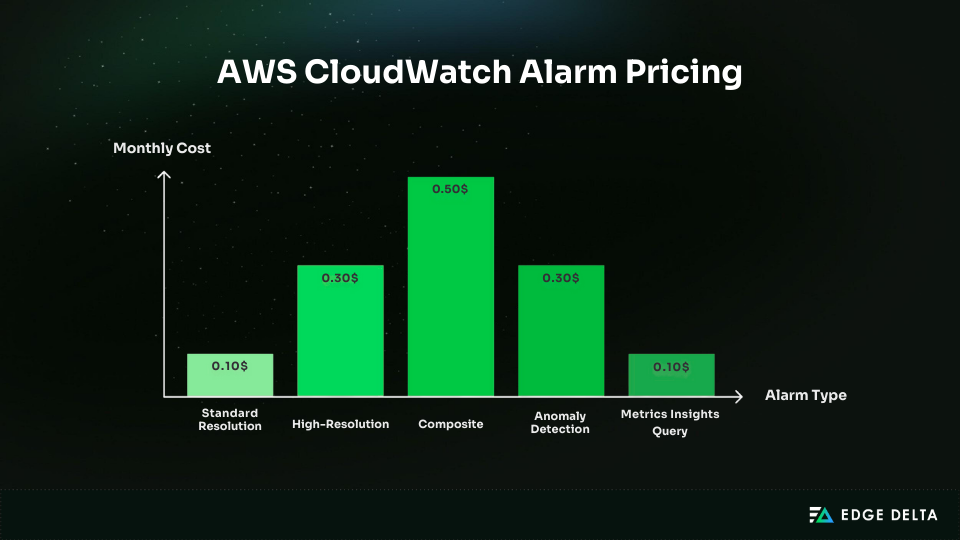
A clear understanding of CloudWatch alarm pricing is essential to any cost-reduction strategy. Each alarm type has a different evaluation interval, complexity, and metric count, and each of these variables influences monthly pricing.
Alarm Types and Their Costs
Each type of alarm comes with a different cost, and the required evaluation frequency can raise the price even further. Choosing the right alarm for each use case helps you avoid unnecessary spend.
Standard Resolution Alarms
Key points:
- Evaluation: 60-second intervals
- Best for: day-to-day operational monitoring
Standard alarms cost $0.10 per metric per month and evaluate once every 60 seconds. They cover nearly all production needs and work well for applications, APIs, databases, and core infrastructure.
Use standard resolution alarms as your default unless there’s a defined need for sub-minute detection.
High-Resolution Alarms
Key points:
- Evaluation: 10–30 second intervals
- Best for: workloads that require immediate detection
High-resolution alarms cost $0.30 per metric per month and evaluate far more frequently than standard alarms. They’re designed for scenarios where even a short delay can have a serious impact.
Typical use cases include financial or trading platforms, medical or safety-critical systems, and services with strict sub-minute SLAs. A common mistake is enabling high resolution by default without a real operational need.
Composite Alarms
Key points:
- Evaluation: Based on underlying alarms
- Best for: Combining multiple alarm states and reducing alert noise
Composite alarms cost $0.50 per month per alarm, and you are also charged for every underlying metric alarm. They are used to combine multiple alarm states into a single alert or to create more advanced logic around when notifications should fire.
They can simplify alerting, but costs can add up quickly if many metric alarms feed into them. Use them when the need for aggregation or noise reduction clearly outweighs the added expense.
Anomaly Detection Alarms
Key points:
- Evaluation: Automatic, based on observed patterns
- Best for: Workloads with variable or seasonal traffic
Anomaly detection alarms cost $0.30 per month for each alarm because AWS automatically creates three metrics: the actual value, an upper bound, and a lower bound. This type works well for setups where normal behavior shifts over time and fixed thresholds do not work reliably.
Metrics Insights Query Alarms
Key points:
- Evaluation: Query-based, up to 10 matched metrics per alarm
- Best for: Monitoring across multiple related metrics with a single query
Metrics Insights alarms cost $0.10 per matched metric per month, with a limit of 10 metrics per query. If the query is too broad, it can unintentionally match many metrics and increase your monthly costs.
Use focused filters, such as environment or service name, to keep results targeted and predictable.
How Costs Are Calculated
CloudWatch alarms are billed hourly and aggregated monthly. When you create an alarm mid-month, the cost accrues only from the activation date. Deleting an alarm immediately stops charges.
A key rule: AWS bills per metric, not per alarm. This means an alarm monitoring four metrics costs $0.40 per month, not $0.10. Composite alarms add their own fee on top of the underlying alarms.
Sample Monthly Bill
• 15 standard alarms → $1.50
• 5 high-resolution alarms → $1.50
• 2 composite alarms → $1.00
• Underlying alarm charges → $0.70
Total: $4.70/month
Charges apply even if an alarm never triggers or stays in INSUFFICIENT_DATA. Dormant alarms or alarms tied to deleted resources continue generating charges until manually deleted. This is one of the most common forms of silent waste.
Free Tier Benefits and Limitations
AWS Free Tier provides 10 standard alarm metrics per month at no cost. These apply automatically and are useful for essential production alarms or baseline health checks.
| Included | Not Included |
|---|---|
| • 10 standard-resolution alarm metrics • Applies across the entire account | • High-resolution alarms • Composite alarms • Anomaly detection • Metrics Insights alarms • Any alarms beyond 10 metrics |
Best Practice: Assign the Free Tier to production alarms rather than test or development workloads. Monitor usage regularly through Cost Explorer to avoid unexpected charges once the 10-metric threshold is exceeded.
Hidden Costs Driving Up Your CloudWatch Alarm Bill
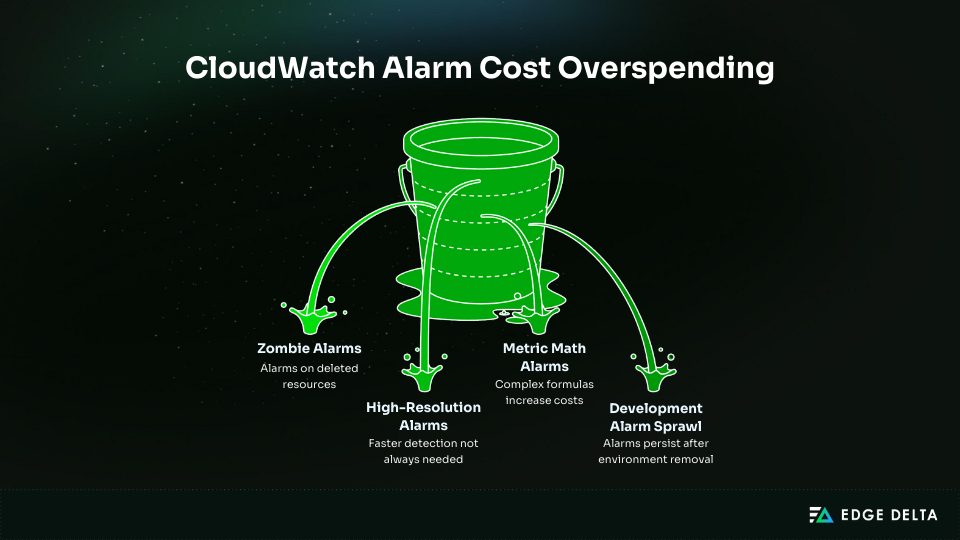
Most CloudWatch alarm overspending comes from hidden costs. In fast-changing environments, unused or orphaned alarms often continue generating charges without anyone noticing.
Cleaning them up early can significantly reduce alarm spend while keeping visibility intact.
Zombie Alarms
Zombie alarms remain active even after the underlying EC2 instance, ECS service, or database has been deleted. They typically stay in an INSUFFICIENT_DATA state but continue generating charges indefinitely.
This issue is common in auto-scaling environments, CI/CD pipelines, and ephemeral workloads.
How to identify zombie alarms:
- Alarms stuck in
INSUFFICIENT_DATAfor 30+ days - No state changes for 60–90 days
- Alarms monitoring non-existent resources
- Alarms without SNS actions
For example, 50 standard-resolution zombie alarms, billed at $0.10 per metric per month, result in $5.00 in unnecessary recurring spend every month.
The best way to prevent and eliminate this waste is to:
- Run quarterly audits and automate cleanup with Lambda
- Track ownership through tagging
- Use IaC to delete alarms with their resources
In high-volume environments, some teams also use vendor-neutral telemetry pipelines (like Edge Delta) to route non-critical data elsewhere, which prevents it from triggering a chargeable signal.
Unnecessary High-Resolution Alarms
High-resolution alarms cost three times more than standard alarms. Many teams enable them without evaluating whether faster detection is truly needed.
As an example, 30 high-resolution alarms cost $9.00 per month, while 30 standard alarms cost just $3.00. That’s $6.00 in avoidable spend every single month for the same number of alarms.
High resolution only makes sense in a small number of scenarios, such as:
- Real-time trading
- Safety-critical monitoring
- Sub-minute SLAs
In contrast, standard alarms are more than enough for the vast majority of use cases, including CPU and memory monitoring, API latency and availability, and database or service load metrics.
Downgrading unnecessary high-resolution alarms is one of the simplest and fastest cost-saving actions.
Metric Math Alarms
Metric math alarms charge for every metric referenced in the expression. Complex formulas that pull in multiple metrics increase the cost of each alarm.
For example, an expression that uses four metrics costs $0.40 per month. Publishing one aggregated metric instead costs $0.10 per month, which is a 75% reduction.
Left unchecked, metric math can drive costs up quickly. Aggregating metrics before publishing is the most effective way to keep monthly spend down.
Development and Test Environment Alarm Sprawl
Temporary environments create alarms that often persist long after the environment is removed. This is common in dev, QA, staging, preview, and sandbox environments.
For example, three environments with 20 alarms each create 60 total alarms. At $0.10 per alarm per month, that adds up to $6.00 in unnecessary spend.
To prevent this sprawl:
- Tag alarms by environment
- Use expiration or lifecycle tags
- Delete alarms during teardown
- Enforce IaC for all environment creation
In organizations without governance, non-production alarm sprawl often exceeds production alarm costs. In more mature setups, this is addressed upstream through in-pipeline data filtering rules that ensure only production-grade signals reach monitoring systems.
Top 10 Tips and Tricks to Reduce CloudWatch Alarm Costs
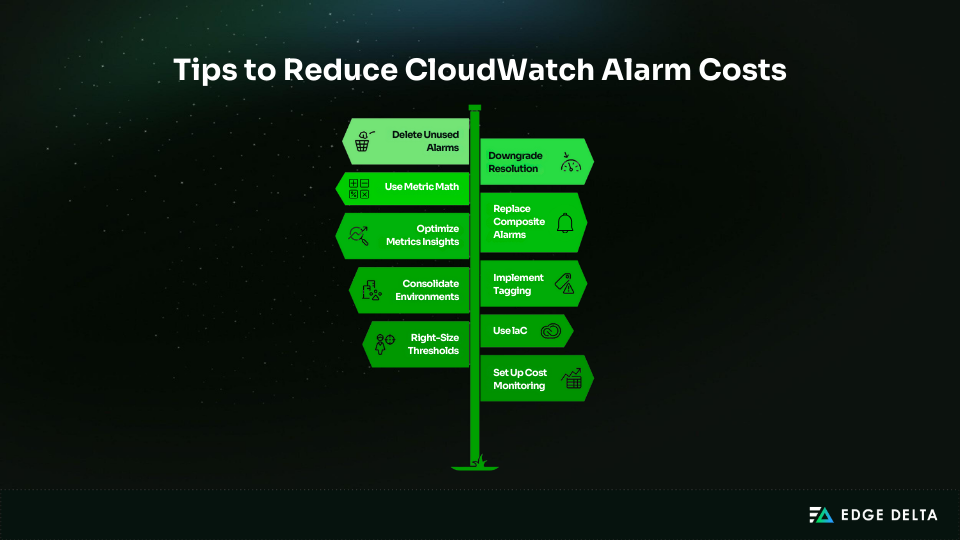
A handful of high-impact actions deliver most of the savings with CloudWatch alarms. Organizations can usually cut costs significantly by removing unused alarms, avoiding unnecessary high-resolution monitoring, reducing metric duplication, and preventing alarm sprawl while still maintaining full visibility.
Tip #1: Delete Unused and Zombie Alarms (Highest Impact)
Unused alarms often account for 20–30% of all CloudWatch alarm spending. These alarms usually track deleted resources or inactive metrics and offer no operational value. Removing them is one of the fastest ways to cut costs without affecting coverage.
Practical steps:
- Export all alarms with
describe-alarms - Delete in batches
- Monitor for issues for one week
- Automate cleanup with Lambda or CloudFix
Expected savings range from $5 to $100+ per month, depending on environment size.
Tip #2: Downgrade High-Resolution to Standard Resolution
High-resolution alarms cost $0.30/month compared to $0.10/month for standard. Most workloads do not require sub-minute detection.
Steps:
- List all high-resolution alarms
- Verify which workloads need sub-minute thresholds
- Downgrade unnecessary alarms
- Review high-res usage quarterly
Example savings: Downgrading 15 out of 20 high-resolution alarms cuts monthly spending by $3.00, a 67% reduction per alarm.
Tip #3: Use Metric Math for Smart Aggregation
Metric Math allows you to aggregate metrics efficiently. However, referencing many metrics increases alarm cost.
Inefficient approach: (m1 + m2 + m3 + m4) / 4 → 4 metrics billed
A more efficient approach is to publish one aggregated metric (for example, overall_error_rate) and create one alarm on that. This lets you save up to 80% for common aggregation use cases.
Tip #4: Replace Composite Alarms with Metric Math (When Possible)
Composite alarms cost $0.50/month, and charges apply to underlying alarms. Metric Math often provides the same logic at a fraction of the cost.
Example:
- Using metric math with two metrics = $0.20/month
- Composite approach with four underlying alarms = $0.90/month
- Savings: 78%
Composite alarms still help when truly combining alarm states. However, for simple multi-metric logic, Metric Math is cheaper and sufficient.
Tip #5: Optimize Metrics Insights Query Alarms
Metrics Insights sends out alarms for each matched metric. Broad queries can match hundreds of series and raise the cost by a lot.
Example:
- Query matching 100 instances → $10/month
- Tightened query matching 20 → $2/month
- Savings: 80%
Use focused filters such as Environment, Service, or Cluster. Always check the match count before saving the alarm.
Tip #6: Implement Alarm Lifecycle Management with Tags
Tagging helps manage ownership, governance, cost allocation, and automated cleanup.
Recommended tags:
Environment: prod | staging | dev | testOwner: team-nameService: microservice-nameCreatedBy: terraform | manual | autoscalingExpirationDate: YYYY-MM-DDCritical: true
A weekly Lambda can delete expired alarms or send notifications for review. Tagging prevents silent sprawl.
Tip #7: Consolidate Multi-Environment Alarms
Many organizations duplicate alarm sets across environments. Adopting a tiered strategy significantly reduces recurring costs.
Recommended tiers:
- Prod: full alarm set
- Staging: critical-path monitoring only
- Dev/QA: basic health checks
Tip #8: Use Infrastructure-as-Code for Alarm Management
Managing alarms with Infrastructure-as-Code ensures they follow the same lifecycle as the resources they monitor. This prevents orphaned alarms, enforces consistency, and avoids silent sprawl.
IaC also gives you version control, repeatability, and automatic cleanup during stack or environment teardown.
Tip #9: Right-Size Alarm Thresholds to Reduce False Positives
Incorrect thresholds lead to excessive triggers or no triggers at all. Right-sizing reduces noise and eliminates low-value alarms.
Best practices:
- Review 30 days of alarm history
- Delete alarms with no triggers
- Increase thresholds to reduce noise
- Use sustained thresholds (e.g., CPU > 90% for 10 minutes)
- Prefer p95/p99 latency for more accurate alerts
Tip #10: Set Up Cost Monitoring and Budget Alerts
Keeping an eye on CloudWatch alarm spend helps catch growth before it becomes a problem. Use Cost Explorer to filter by CloudWatch and track usage types such as AlarmMonitorUsage and HighResAlarmMonitorUsage over time.
Additionally, you should set a monthly budget for CloudWatch, add alerts at key thresholds like 80% and 100%, and send notifications through SNS to email or Slack. Review the trend monthly and include it in your regular audit process.
Advanced Cost Optimization Strategies
Automation and governance amplify long-term savings by preventing the slow accumulation of sprawl, duplicates, and unnecessary complexity.
Automate Alarm Cleanup at Scale
A scheduled Lambda can remove unused or low-value alarms before they rack up ongoing costs. Run it weekly using EventBridge and start in report-only mode before enabling deletions.
Cleanup criteria:
INSUFFICIENT_DATAfor 30+ days- No state changes for 60+ days
- No SNS actions
- Temporary or test alarms (via tags)
- Use safeguards like DoNotDelete tags and S3 exports before removal.
Typical savings: $10–$100 per month with no manual effort.
Use Infrastructure-as-Code for Governance
IaC is what makes long-term CloudWatch governance possible. It connects each alarm to the resource it watches, which stops alarms from being left alone and makes sure they always work the same way.
Benefits:
- Automatic cleanup on stack deletion
- Standardized alarm definitions
- Full version history
- Easy replication across environments
Aggregate Metrics Before CloudWatch
Aggregating metrics before publishing significantly reduces metric count and alarm cost.
Example:
- 10 microservices publish
error_rate→ 10 alarms ($1.00/month) - Publish a single aggregated metric → 1 alarm ($0.10/month)
- Savings: 90%
You can aggregate metrics at the application layer or by using tools like the CloudWatch Agent, StatsD, Telegraf, or a lightweight Lambda processor. This reduces clutter, lowers cost, and simplifies monitoring.
Real-World Cost Optimization Examples
Real-life examples show that targeted cleanup and simple changes to governance can lead to big reductions.
Example 1: Typical Web Application Optimization
A SaaS startup ran 120 alarms across ECS, RDS, and ElastiCache, costing $16/month.
Breakdown:
- 80 standard alarms: $8.00
- 15 high-resolution alarms: $4.50
- 20 zombie alarms: $2.00
- 5 composite alarms: $2.50
Optimizations:
- Deleted 20 zombie alarms → saved $2
- Downgraded 10 high-res → saved $2
- Replaced 3 composites → saved $1.50
- Removed redundant alarms → saved $1.50
Result: Costs dropped to $9/month, a 44% reduction.
Example 2: Multi-Environment Consolidation
A mid-size SaaS company had 50 alarms per environment across Prod, Staging, Dev, and QA → 200 alarms and $20/month.
Optimized tiers:
- Prod: 50 alarms → $5
- Staging: 20 alarms → $2
- Dev: 10 alarms → $1
- QA: 10 alarms → $1
Result: Costs dropped to $9/month, a 55% reduction.
Step-by-Step 30-Day Optimization Action Plan
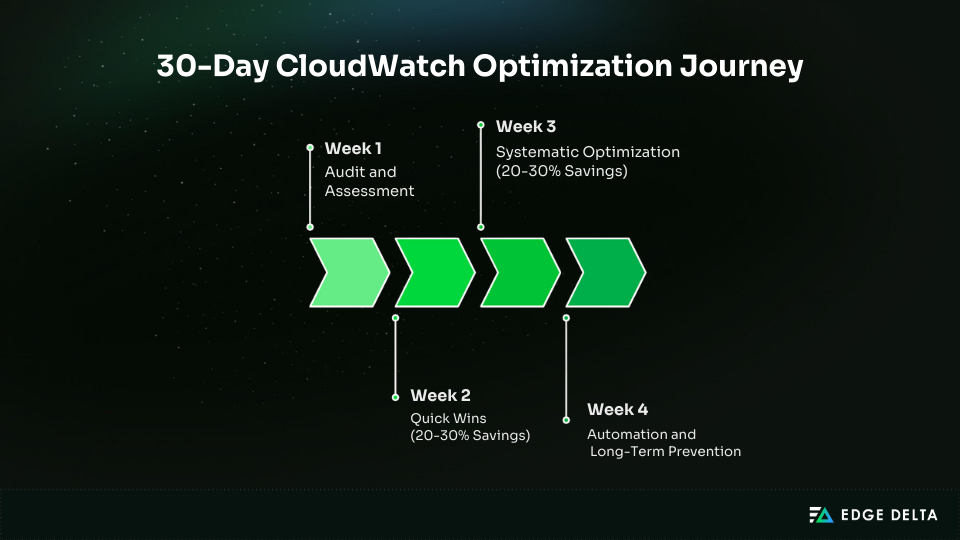
This 30-day plan provides a structured roadmap for reducing CloudWatch alarm spending by 40–60 percent. Each week builds on the previous one.
Week 1: Audit and Assessment
Week 1 is about understanding where you are today and identifying obvious waste.
During this time, you should:
- Use Cost Explorer to review the last 3 months of CloudWatch alarm spend.
- Export all alarms and flag those in INSUFFICIENT_DATA or with no state changes.
- Count standard vs high-resolution vs composite alarms.
- Set a clear reduction target for the next 30 days.
Week 2: Quick Wins (20–30% Savings)
Week 2 focuses on removing clearly low-value alarms and easy misconfigurations.
It’s best to prioritize:
- Deleting zombie and obviously unused alarms.
- Downgrading non-critical high-resolution alarms to standard.
- Removing duplicate or overlapping alarms.
- Cleaning up dev/test alarms that no longer match active environments.
Many teams see 20–30% savings just from Week 2 changes.
Week 3: Systematic Optimization (20–30% Savings)
Week 3 is where you tighten logic and improve structure, not just delete things.
During this week, you should:
- Add tags like Environment, Owner, and Service to all alarms.
- Replace simple composite patterns with Metric Math where it’s cheaper.
- Narrow Metrics Insights queries to avoid matching unnecessary metrics.
- Tune thresholds and remove alarms that never trigger or provide no signal.
These changes typically unlock another 20–30% in savings and reduce noise.
Week 4: Automation and Long-Term Prevention
Week 4 is about making sure costs don’t creep back up.
Prioritize these action items:
- Set a CloudWatch-specific cost budget and configure alerts.
- Deploy a weekly cleanup Lambda using clear criteria and tags.
- Enforce IaC (CloudFormation, Terraform, CDK, Pulumi) for all production alarms.
- Document standards for tagging, high-resolution approvals, and quarterly audits.
By the end of Week 4, you will have both lower costs and a repeatable process that prevents sprawl from returning. Over time, some teams formalize these rules into their observability layer so cost control becomes part of the data pipeline itself.
Monitoring Your Alarm Costs
Regular monitoring makes sure that the costs of CloudWatch alarms stay in check and grow with the business. Regular access to alarm spending information helps keep costs from rising without anyone noticing and makes teams more responsible.
Using AWS Cost Explorer
Cost Explorer gives you a clear view of how much you’re spending on CloudWatch alarms and where that spend is coming from.
Start by filtering the service to CloudWatch, then group results by Usage Type to see categories like AlarmMonitorUsage, HighResAlarmMonitorUsage, and CompositeAlarmMonitorUsage.
From there, review month-over-month trends, look for sudden spikes, and break costs down by region or tags if needed. Export a monthly view or add it to a dashboard so it becomes part of your regular review process.
Setting Up Budget Alerts
AWS Budgets alerts you when spending approaches predefined thresholds.
Set up steps:
- Create a cost budget
- Filter by Service = CloudWatch
- Set targets such as $20/month
- Add alerts at 80%, 100%, 120%
- Use SNS for notifications or Slack integration
Budgets help teams catch overspending early.
Common Mistakes to Avoid
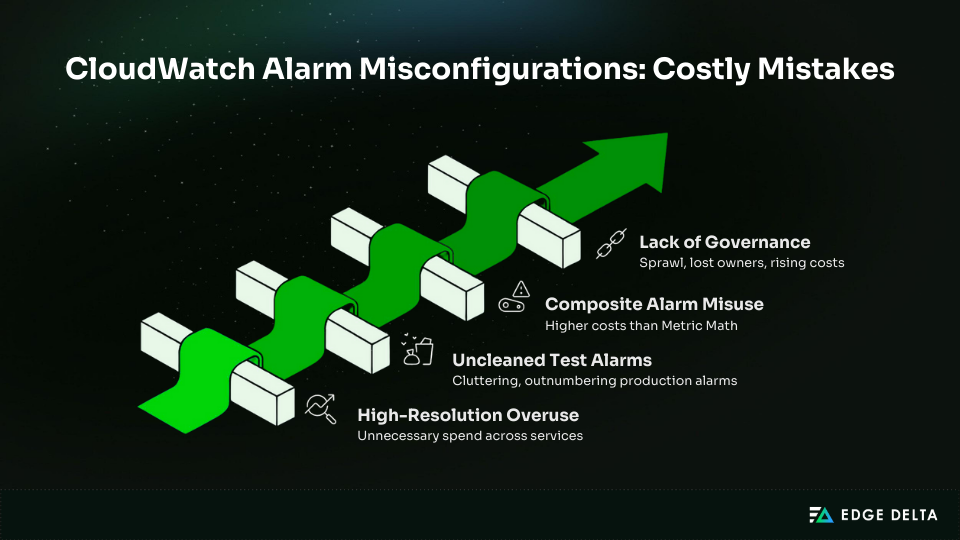
Learning from common CloudWatch misconfigurations can save a significant amount of money and improve operational discipline. These are the most frequent and costly mistakes teams make when managing alarms.
Mistake #1: Setting Everything to High-Resolution “Just in Case”
High-resolution alarms cost three times more than standard ones, yet many teams enable them by default without a true need for sub-minute detection. Over time, this silently inflates costs across dozens or even hundreds of alarms.
Fix: Only use high resolution when there is a clear, time-critical requirement that justifies it.
Mistake #2: Not Cleaning Up Test/Development Alarms
Temporary alarms created in dev, QA, staging, or preview environments often outlive the environments themselves. These orphaned alarms can quietly outnumber production alarms and add nothing but cost.
Fix: Tie alarms to environment lifecycle or remove them automatically during teardown.
Mistake #3: Using Composite Alarms When Metric Math Would Work
Composite alarms are frequently used to combine multiple conditions even when simple Metric Math would produce the same outcome at a much lower cost. This adds complexity and unnecessary monthly charges.
Fix: Use composite alarms only to combine alarm states, not individual metrics.
Mistake #4: No Alarm Governance or Ownership
When alarms have no clear owner or process, sprawl happens fast. Alarms lose relevance, become outdated, and remain active long after they stop being useful.
Fix: Require ownership tags and manage alarms through Infrastructure-as-Code.
Tools and Resources for Alarm Cost Management
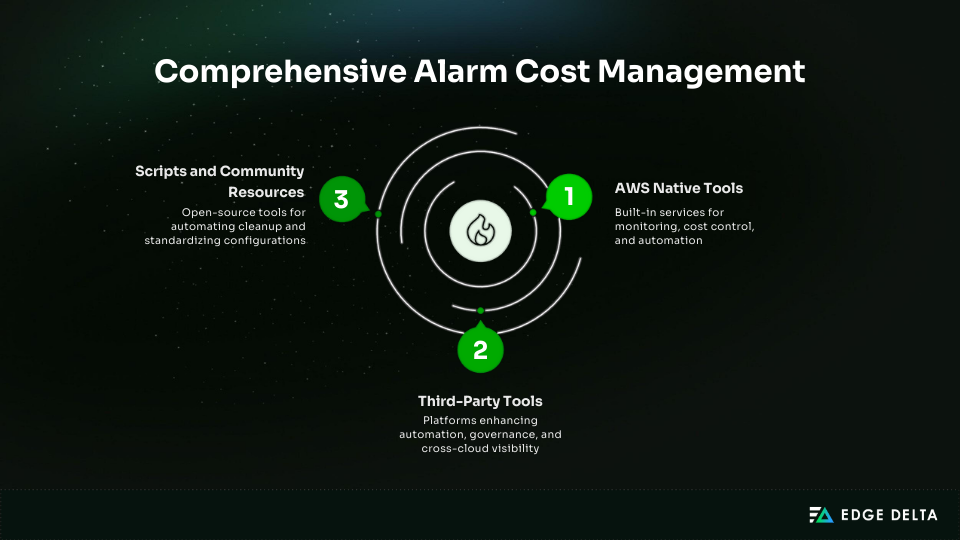
AWS and third-party tools make it easier to track CloudWatch alarm costs, automate cleanup, and enforce governance. Using them together provides full visibility and reduces long-term waste.
AWS Native Tools
AWS already gives you what you need to track, control, and manage CloudWatch alarm costs.
Use Cost Explorer and AWS Budgets to monitor monthly spend and catch spikes early. For deeper analysis, pull data from Cost and Usage Reports (CUR).
Manage alarms directly in the CloudWatch console or automate updates and cleanup with the AWS CLI. Define and govern alarms through CloudFormation or CDK so they follow the same lifecycle as your infrastructure.
For ongoing automation, use Lambda and EventBridge to schedule cleanup and enforce lifecycle rules.
Third-Party Tools
Third-party platforms can extend what AWS provides, especially for automation, governance, and cross-account visibility.
- Cost optimization: Edge Delta, CloudFix, CloudHealth, CloudCheckr
- Infrastructure-as-Code: Terraform, Pulumi
- Alternative monitoring: Edge Delta, Datadog, New Relic, Prometheus + Grafana
These tools can help reduce alarm sprawl and improve visibility across environments.
Scripts and Community Resources
Open-source tools help automate cleanup and standardize alarm configurations. GitHub provides scripts for listing high-res alarms, counting alarms by state, and deleting alarms by pattern.
Terraform modules also offer reusable templates that simplify deployment and enforce consistent monitoring standards.
Conclusion and Key Recommendations
CloudWatch alarms are essential for reliability, but costs can grow fast when they aren’t actively managed. Most overspending comes from zombie alarms, unnecessary high-resolution settings, and sprawl in non-production environments.
The fastest wins come from deleting unused alarms, downgrading high-resolution where it isn’t justified, and simplifying complex alarm setups. From there, tagging, aggregation, and Infrastructure-as-Code help keep things clean and predictable over time.
The key is consistency: audit regularly, automate cleanup, and monitor spend with budgets and reports. With a few smart habits in place, most teams can reduce CloudWatch alarm costs by 40–60% without losing visibility or reliability.
Frequently Asked Questions
How much can I realistically save on CloudWatch alarm costs?
You can reduce CloudWatch alarm costs by removing unused or orphaned alarms and downgrading unnecessary high-resolution alarms. Audits often reveal dormant alarms still generating charges, and cleaning them up quickly delivers meaningful savings.
Will deleting alarms affect monitoring coverage?
Not when done properly. Safe cleanup removes alarms with no state changes, those in INSUFFICIENT_DATA for 30+ days, duplicates, or alarms attached to deleted resources. Always export configurations and delete in batches.
What is the difference between disabling and deleting an alarm?
Disabling does not stop billing. Disabled alarms incur full charges. Only deletion stops the cost immediately. Export first, delete, and re-create if needed.
How can I automate alarm cleanup safely?
Start with a reporting-only Lambda, move to notification mode, and apply full deletion with safeguards such as DoNotDelete tags and S3 backups.
Should I use standard or high-resolution alarms?
Use the standard for 95% of workloads. High resolution is justified only for strict sub-minute detection. Downgrading unnecessary high-res alarms typically reduces spending by 67% per alarm.
References: