

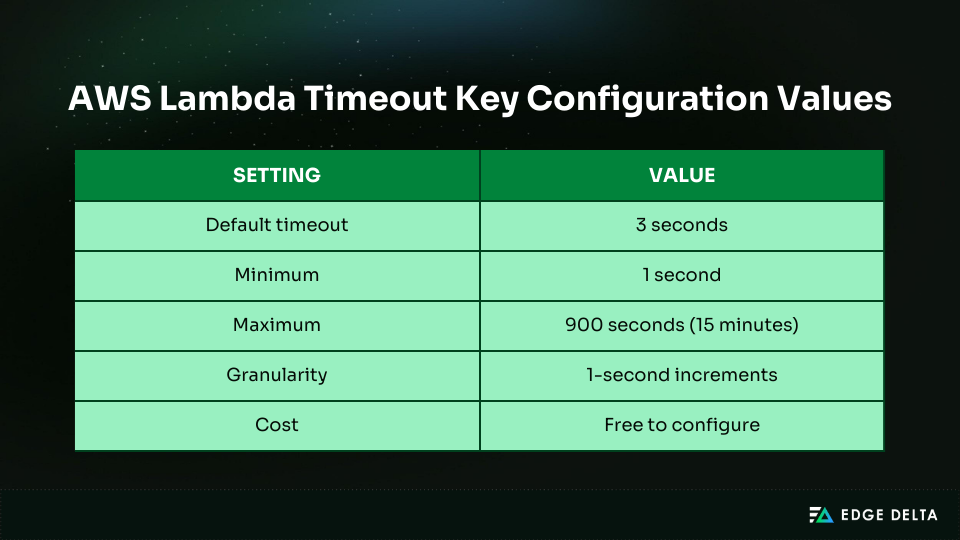
AWS Lambda timeout errors can disrupt production workloads and create frustrating challenges for development teams. Many teams run into these failures early because the default 3-second limit is shorter than expected, causing functions to time out before they finish execution.
One of the toughest decisions is whether to raise the timeout limit or optimize your code and dependencies. Timeout settings directly influence reliability, performance, and cost, so adjusting them without enough context can introduce new issues.
In this guide, we’ll break down how AWS Lambda timeouts work, how they affect reliability and cost, and how to configure them effectively. You’ll also learn how to monitor timeouts, manage event-source constraints, and apply best practices to prevent recurring issues.
Key Takeaways
• AWS Lambda has a default timeout of three seconds, which is often too short for most real-world workloads and can lead to unnecessary failures.
• Longer timeouts can increase your costs, as AWS charges based on total runtime, even when functions are stalled.
• Different workloads require distinct timeout ranges, especially when comparing APIs to batch- or stream-based tasks.
• While the service allows a maximum execution time of 15 minutes, only long-running batch or processing tasks benefit from this limit.
• Event sources impose their own limits, such as API Gateway’s fixed 29-second cap, which overrides any timeout settings you configure for Lambda.
Understanding AWS Lambda Timeout Fundamentals
An AWS Lambda timeout prevents a function from running indefinitely. It defines the maximum amount of time a function is allowed to execute, and it applies to the entire invocation lifecycle, including cold-start initialization, handler logic, and any external calls.
If the timeout is reached, Lambda stops the function immediately. Any work in progress is left unfinished, and a “Task timed out” message appears in CloudWatch. Timeout behavior also changes how different invocation types respond:
- Synchronous calls return a timeout error.
- Asynchronous calls trigger up to two retries.
- Background tasks may remain incomplete.
Setting the right timeout is essential. If it’s too low, your workloads may fail. If it’s too high, you might miss performance issues and end up paying more. Match your timeouts to how your workloads actually run for reliable and efficient serverless apps.
How to Configure a Lambda Timeout
Setting the timeout for AWS Lambda functions is very important for making sure they work well and reliably. This section will explain how to use the Console, the Command Line Interface (CLI), and infrastructure-as-code tools to set timeouts for Lambda.
AWS Console Configuration
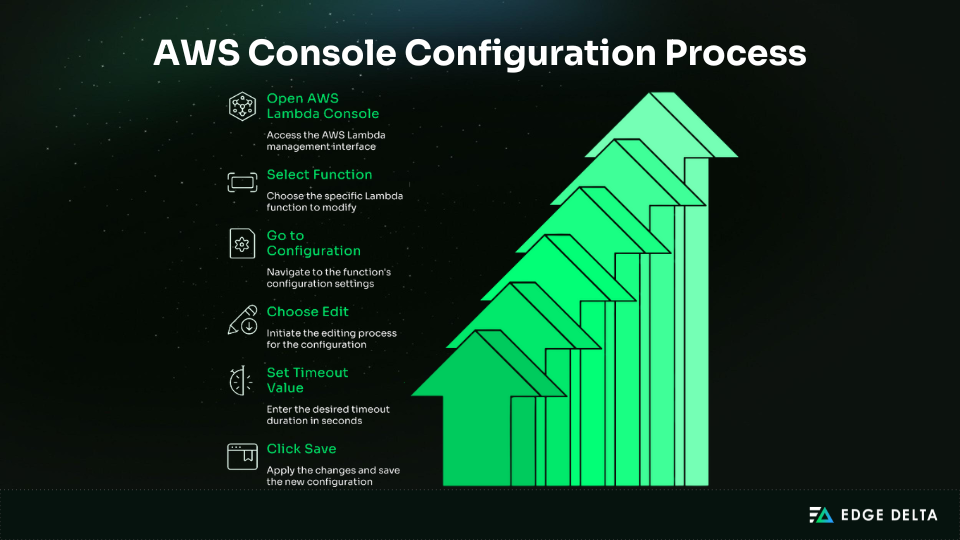
The AWS Console makes it easy to change Lambda timeouts, making it ideal for testing and quick adjustments. It lets you experiment manually and helps new team members understand how timeout settings affect performance.
AWS CLI Configuration
Updating Lambda timeouts is quick and easy with the AWS CLI. It helps keep settings constant and cuts down on mistakes in CI/CD pipelines or when you need to change a lot of functions at once.
To update the timeout:
aws lambda update-function-configuration \
  --function-name my-function \
  --timeout 120
To verify the new timeout:
aws lambda get-function-configuration \
  --function-name my-function \
  --query 'Timeout'
AWS SAM (Serverless Application Model)
AWS SAM provides a structured way to configure Lambda timeouts by adding the Timeout property to your function in the deployment template.
After making the changes, deploy your application with sam build and sam deploy. This process simplifies serverless workflows and supports version-controlled infrastructure for better team collaboration.
Resources:
  MyFunction:
    Type: AWS::Serverless::Function
    Properties:
      CodeUri: .
      Timeout: 120
      MemorySize: 1024
Terraform Configuration
You can set Lambda timeouts in Terraform as part of a fully formal and version-controlled infrastructure stack. To set up the Lambda resource, you just need to add the timer:
resource "aws_lambda_function" "my_function"
 {
    runtime       = "nodejs18.x"
    handler       = "index.handler"
    timeout       = 120
}
CloudFormation Configuration
AWS CloudFormation manages Lambda timeouts as part of your AWS-native stack. This ensures the timeout is defined directly in the Lambda function resource and applied consistently across all environments.
Resources:
  MyLambdaFunction:
    Type: AWS::Lambda::Function
    Properties:
      FunctionName: my-function
      Runtime: nodejs18.x
      Handler: index.handler
      Timeout: 120
      MemorySize: 1024
      Code:
        S3Bucket: my-lambda-bucket
        S3Key: function.zip
Lambda Timeout Best Practices
Setting AWS Lambda timeouts correctly helps you avoid production failures, reduce unnecessary costs, and improve reliability. This section explains how to pick the correct timeout values for different workloads and integrations.
Set Context-Appropriate Timeouts
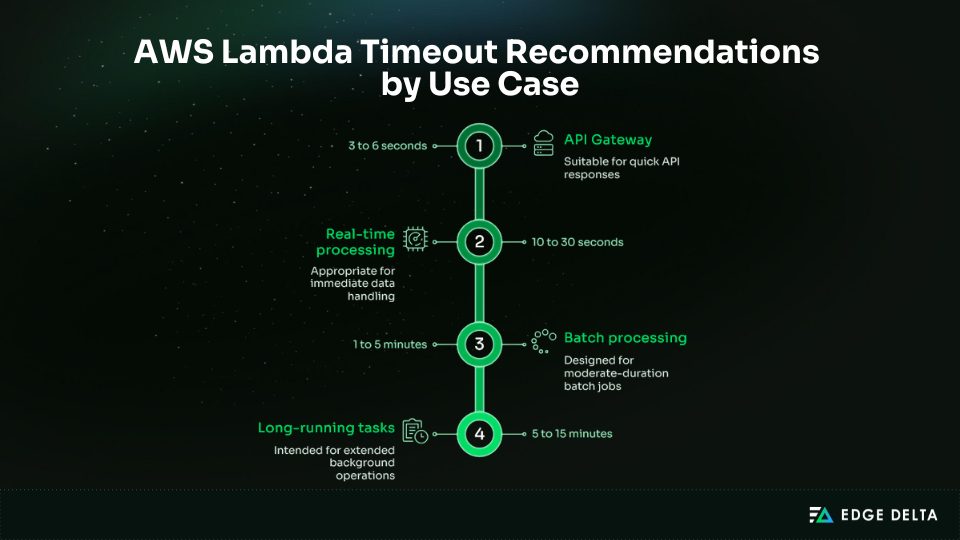
Set timeouts for each workload instead of using the same value for every function. Using a single timeout for all functions can cause failures, mask performance issues, or increase costs. Each use case is different, so set timeouts based on each function’s behavior.
Typical patterns include:
- API-facing functions: Use short timeouts of up to 29 seconds to ensure quick responses.
- Stream/event-driven workloads: Set moderate timeouts to accommodate potential retries.
- Batch processing: Select longer timeouts for larger data volumes that may take several minutes to process.
- Long-running tasks: These tasks may approach the maximum Lambda limit of 900 seconds.
Sample code:
const TIMEOUTS = {
  api: 6,
  stream: 30,
  batch: 300,
  processing: 900
};
Configure Integration-Level Timeouts
An AWS Lambda timeout will protect your function, but it won’t control how long downstream services can block execution. If a query or API call hangs, the function waits for its own timeout to run out, wasting time and blocking retries or fallback logic.
To avoid wasting execution time, set a timeout for each downstream operation, such as S3 operations, DynamoDB queries, and 3rd‑party API requests.
Code snippet:
const AWS = require('aws-sdk');

const dynamodb = new AWS.DynamoDB.DocumentClient({
  httpOptions: { timeout: 5000, connectTimeout: 1000 }, //
 integration-level timeouts
  maxRetries: 2
});

const result = await Promise.race([
  dynamodb.get(params).promise(),
  timeout(operationTimeout)
]);
Align with Event Source Limits
Lambda timeouts should match the timing rules of the event source that triggers the function. If the settings do not match, you might waste computing time or cause duplicate processing.
How different event sources behave:
| Event Source | Enforced Limit | Recommended Lambda Timeout | Critical Setting |
|---|---|---|---|
| API Gateway | 29 seconds | 3 to 6 seconds | Use an async pattern for long tasks |
| SQS | Visibility timeout | Any (≤15 min) | Visibility = 6 × Lambda timeout |
| EventBridge | None | Based on workload | Idempotency required |
| Kinesis | None | 30 to 300 seconds | Match batch size |
| DynamoDB Streams | None | 30 to 300 seconds | Match batch size |
| S3 Events | None | Task specific | Consider file size |
| ALB | 15 minutes | Up to 15 minutes | Longer tasks allowed |
Common Lambda Timeout Causes
Most AWS Lambda timeouts happen for predictable reasons. Once you know what causes them, you can prevent them by using the right configuration and architecture.
Slow Downstream Services
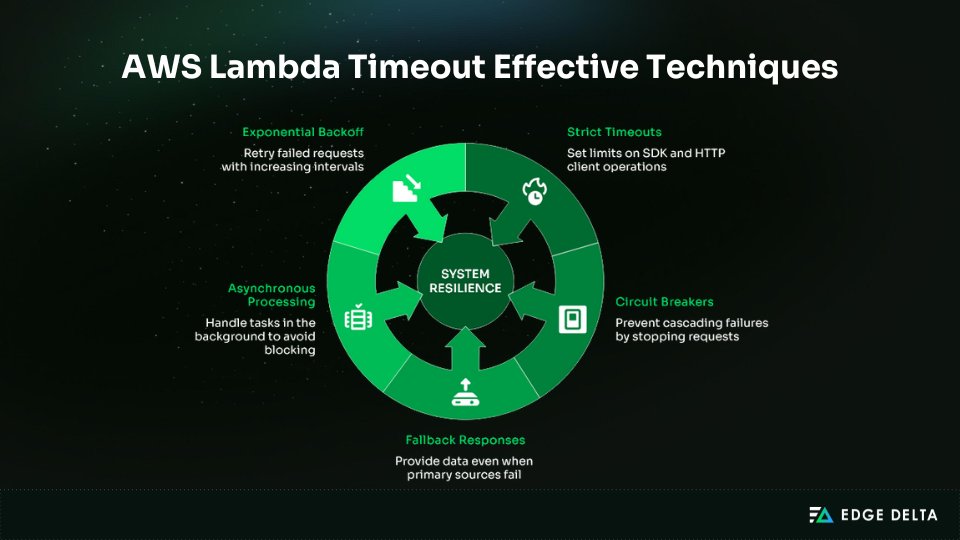
Slow downstream services often cause Lambda function timeouts. Even efficient code can’t finish if a dependency is slow. Delays from third-party APIs, database queries, S3 downloads, internal services, or network issues can use up the entire timeout window.
| Example Scenario | A payment API responds too slowly. Lambda waits, then times out. |
|---|---|
| Solutions | Configure aggressive SDK client timeouts. Implement circuit breakers to fail fast. Use cached or degraded fallback data. Offload slow tasks to asynchronous queues. Add retries with exponential backoff. |
Code snippet:
config = Config(
    connect_timeout=2,
    read_timeout=5,
    retries={'max_attempts': 2}
)
s3 = boto3.client('s3', config=config)
Insufficient Memory/CPU
Timeouts happen when a function lacks the resources to finish its work. Because CPU power scales with memory, low memory can slow execution and increase the risk of missed deadlines.
To address this issue, teams can:
- Monitor usage with CloudWatch
- Increase memory for CPU‑bound tasks
- Test different configurations
Cold Starts
A cold start occurs when Lambda spins up a new execution environment after a deployment or a period of inactivity. Startup time counts toward the function’s timeout, and cold starts are slower when packages are large, imports are heavy, or VPC networking is involved.
To reduce impact:
- Minimize package size
- Use Lambda Layers
- Import only required modules
- Keep critical functions warm
- Enable provisioned concurrency
- Use SnapStart for Java
Network and VPC Configuration Issues
Network and VPC misconfigurations can slow down Lambda functions and lead to timeouts. These problems can stall downstream calls and cause execution to exceed the timeout limit.
| Issue | Fix |
|---|---|
| No internet access | Add NAT Gateway or use VPC endpoints |
| NAT Gateway or routing errors | Verify route tables |
| DNS failures | Check DNS settings |
| Restrictive security groups | Update SG rules |
| Slow ENI initialization | Remove VPC attachment if unnecessary |
Code-Level Issues
In some cases, the function’s own logic causes the timeout. Inefficient algorithms, blocking operations, and poor memory handling can slow execution well beyond what the workload requires.
Common pitfalls include:
- Infinite loops or accidental recursion
- Blocking synchronous operations
- Loading large files entirely into memory
Monitoring Lambda Timeouts
Reliable monitoring allows teams to quickly identify timeout risks, understand the rationale behind them, and act before they hit production systems. The section covers some key AWS tooling and techniques in spotting, analyzing, and troubleshooting Lambda timeouts.
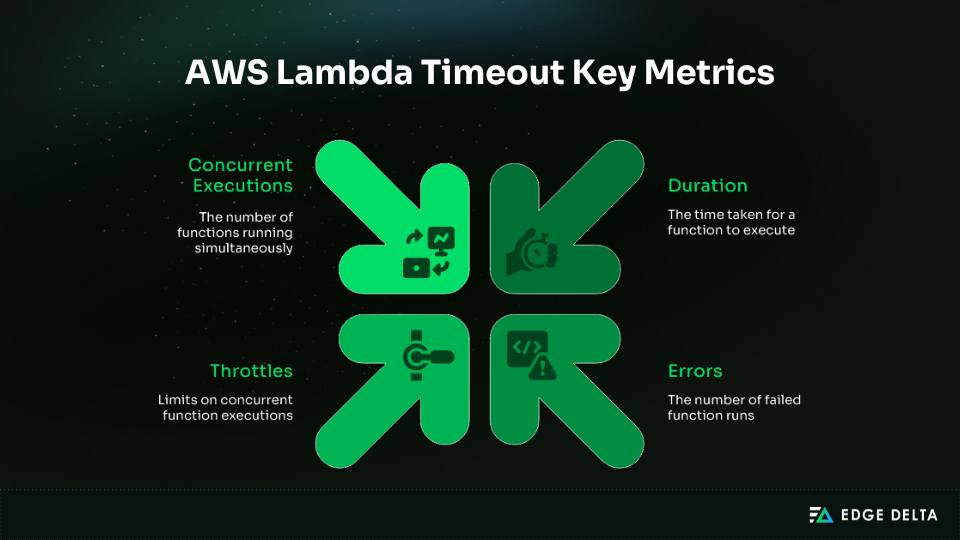
CloudWatch Metrics
AWS CloudWatch is a built‑in monitoring tool that is essential for spotting Lambda timeout risks. It tracks execution patterns and alerts teams before failures escalate.
| Metric | What It Shows | Why It Matters |
|---|---|---|
| Duration | Execution time | Rising values signal timeouts |
| Errors | Failed invocations | Indicates downstream issues |
| Throttles | Blocked calls | Concurrency limits cause delays |
| ConcurrentExecutions | Active functions | Correlates load with slowdowns |
Duration Alarm Example
aws cloudwatch put-metric-alarm \
  --alarm-name lambda-high-duration \
  --metric-name Duration \
  --namespace AWS/Lambda \
 --statistic Maximum \
  --threshold 5000
CloudWatch Logs Insights
By looking for the “Task timed out” pattern, AWS CloudWatch Logs Insights helps find and analyze Lambda timeouts. Targeted queries reveal which calls failed and highlight trends over time.
To detect timeouts:
fields @timestamp, @requestId, @message
| filter @message like "Task timed out"
| sort @timestamp desc
| limit 100
To spot patterns or spikes, aggregate results over time:
fields @timestamp, @duration, @requestId
| filter @message like "Task timed out"
| stats count() as timeout_count by bin(5m)
| sort @timestamp desc
After you find a timeout, use the request ID to check the full logs. For proactive monitoring, create a metric filter on Task timed out, track it as LambdaTimeouts, and set up an alarm. This gives you better visibility into recurring timeouts than the Errors metric does.
AWS X-Ray Tracing
AWS X‑Ray gives end‑to‑end visibility into Lambda executions, showing request flow, service latency, pending operations, and cold vs. warm start timing.
To enable X-Ray:
- SAM template:
Tracing: Active - Console: Configuration → Monitoring tools → Enable Active tracing
- SDK instrumentation:
const AWSXRay = require('aws-xray-sdk-core');
const AWS = AWSXRay.captureAWS(require('aws-sdk'));
Observability Platform Integration
CloudWatch covers the basics, but deeper timeout analysis often needs visibility across several services. Tools like Datadog, New Relic, and Dynatrace provide better correlation and alerting, but are often cost prohibitive at scale.
For teams running many Lambda functions, telemetry pipelines add extra context and help control costs:
- Edge Delta: Processes logs at the source, filters noise, enriches with Lambda context, and cuts CloudWatch ingestion by 60%–80%.
- Cribl: Preprocesses logs to reduce volume while keeping key signals.
- Mezmo: Routes and transforms data to keep ingestion manageable.
Lambda Timeout Optimization Strategies
Effective timeout tuning starts with real data, not guesswork. By measuring actual execution patterns and adjusting settings over time, you can set timeouts that protect reliability without hiding performance problems.
Baseline Current Performance
Before changing timeouts, collect real execution data under a realistic load, ideally for a week or more. Track the Duration metric and focus on averages, p95, and p99 values. Outliers often show slow dependencies or inefficient code.
Analyze with CloudWatch Logs Insights:
fields @duration
| stats avg(@duration) as avg_duration,
        max(@duration) as max_duration,
        pct(@duration, 95) as p95_duration,
        pct(@duration, 99) as p99_duration
Set your initial timeout based on observed performance. Here’s how you can estimate it:
Timeout = p99 duration + 20%–30% buffer
For example, if your p99 is 4.2 seconds, set the timeout to about 5.5 seconds. Only use the 900-second maximum if you truly need it.
Optimize Code Performance
Timeouts often occur due to inefficient code or heavy initialization. To reduce delays and improve reliability, focus on three areas: reducing package size, minimizing cold starts, and improving execution efficiency.
The table below summarizes the most effective practices:
| Area | Best Practice | Benefit |
|---|---|---|
| Package size | Remove unused dependencies, use Layers | Faster deployment and startup |
| Cold start handling | Init outside handler, use /tmp cache | Reduced initialization delay |
| Runtime choice | Go or Rust | Lower latency |
| Execution efficiency | Concurrency and streaming | Shorter run time, fewer timeouts |
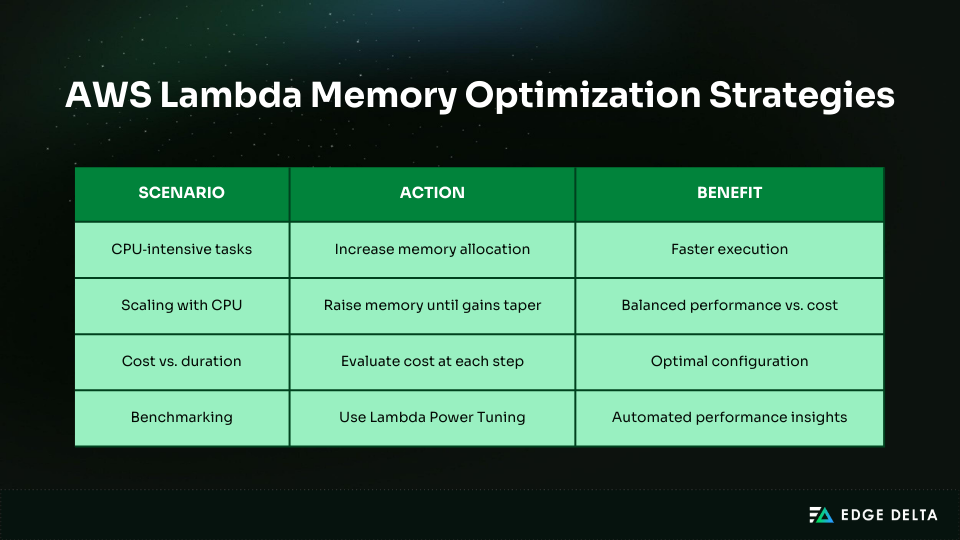
Increase Memory for CPU-Bound Tasks
Some functions slow down not because of inefficient code, but because they don’t have enough computing power.
Tasks like compression, encryption, image processing, and large-scale data transformations often run faster with more memory. The higher cost is often balanced by shorter execution times.
Handling Timeouts Gracefully in Code
Some workloads will still run close to Lambda’s limits, even with optimized functions and well-tuned timeouts. If you handle timeouts well, your function will exit in a predictable way instead of being stopped suddenly.
Check Remaining Time
Use the Lambda context object to check the remaining time and exit gracefully before hitting the timeout. This keeps behavior predictable in loop-based or batch processing and helps save partial progress.
// Usage inside Lambda
for (const item of event.items) {
  if (context.getRemainingTimeInMillis() <= 1000) {
    return { processed: processedCount, reason: 'timeout' };
  }
  await processItem(item);
  processedCount++;
}
Implement Promise Timeouts
Slow or unpredictable downstream calls can push your function to Lambda’s limits. You set a deadline, fail quickly, and get a clear error message by racing the operation against a timer.
// Enforce a timeout on a promise
function timeout(promise, ms) {
  return Promise.race([
    promise,
    new Promise((_, reject) =>
      setTimeout(() => reject(new Error('Operation timed out')), ms)
    )
  ]);
}

// Usage inside Lambda
const result = await timeout(
  fetchFromAPI(event.url),
  context.getRemainingTimeInMillis() - 1000 // reserve 1s for cleanup
);
Implement Fallback Strategies
Even if the main system times out, the function should still give a useful answer. The best way to do this is to first try the main source. If that doesn’t work, use cached data if it’s available. If that doesn’t work either, give an error.
try:
    # Primary source with timeout
    data = fetch_with_timeout(primary_source, timeout_ms=remaining - 1000)
    return {'statusCode': 200, 'body': json.dumps(data)}

except TimeoutError:
    # Fallback to cache
    cached = get_from_cache(event['key'])
    if cached:
        return {'statusCode': 200, 'body': json.dumps(cached),
                'headers': {'X-Data-Source': 'cache'}}

    # Graceful failure
    return {'statusCode': 504,
            'body': json.dumps({'error': 'Timeout, no cache available'})}
Asynchronous Continuation Pattern
Long-running work should be put in a queue, and you should return promptly with a job reference. This allows your function to continue operating in the background and prevents it from timing out.
// Return immediately with job reference
return {
  statusCode: 202,
  body: JSON.stringify({
    jobId: event.job.id,
    status: 'processing',
    statusUrl: `/status/${event.job.id}`
  })
};
Lambda Timeout Anti-Patterns
Timeout problems are usually caused by design choices, not by AWS limits. If you stay away from these common timeout mistakes, you can avoid unexpected behavior, hidden latency, and extra costs.
Anti-Pattern 1: Setting Max Timeout for Everything
Some teams let Lambda functions run for 15 minutes at a time, no matter what. This approach technically works, but it hides performance issues and makes it harder to integrate.
# BAD: Every function gets 15 minutes
Resources:
  ApiFunction:
    Type: AWS::Serverless::Function
    Properties:
      Timeout: 900  # Behind an API Gateway!
  BatchFunction:
    Type: AWS::Serverless::Function
    Properties:
      Timeout: 900  # Might be appropriate
Setting all timeouts to the maximum hides performance issues, raises costs, delays failures, and breaks API Gateway integrations, which are limited to 29 seconds. Timeouts should be set based on each function’s role, not just set to the maximum.
Anti-Pattern 2: Ignoring SQS Visibility Timeout
Messages can show up again before processing is done if Lambda’s timeout is longer than SQS’s visibility timeout. This can cause duplicates. For instance, a 60-second Lambda with the default 30-second visibility will process the same message again.
# Set visibility timeout to 6× Lambda timeout
aws sqs set-queue-attributes \
  --queue-url $QUEUE_URL \
  --attributes VisibilityTimeout=360
Anti-Pattern 3: No Integration Timeouts
Without timeouts, calls downstream may hang until Lambda ends, which wastes resources and delays failures. Setting integration timeouts helps APIs fail quickly, saves money, and opens up space.
// BAD
const response = await axios.get('https://slow-api.com/data');
// GOOD
const response = await axios.get('https://slow-api.com/data', {
timeout: 5000 // 5s
});Anti-Pattern 4: Synchronous Chaining
Synchronously chaining Lambda A to Lambda B increases latency and charges for both during the wait. Use asynchronous invocation, SQS, or EventBridge instead.
Anti-Pattern 5: Not Monitoring Timeout Patterns
Without monitoring, timeout failures go unnoticed until customers complain. Alerts that are proactive are very important:
- CloudWatch alarms on the Duration metric.
- Custom metric filter for “Task timed out.”
- Notifications when the timeout rate exceeds 1%.
Anti-Pattern 6: Hardcoded Timeouts
Hardcoding fixed timeouts wastes Lambda’s runtime and increases the risk of early failures:
# BAD: Hardcoded 5s timeout regardless of remaining time
data = fetch_with_timeout(url, timeout=5)
Instead, calculate dynamically with get_remaining_time_in_millis():
# GOOD: Dynamic based on remaining time
remaining = context.get_remaining_time_in_millis()
data = fetch_with_timeout(url, timeout_ms=remaining - 1000)
Anti-Pattern 7: No Idempotency
Without idempotency, retries can trigger duplicate work or even cause data loss.
Use check-before-insert patterns, conditional writes, or idempotency tokens to ensure repeated executions don’t produce unintended side effects. This prevents duplicate records, preserves data integrity across runs, and keeps retries safe.
Troubleshooting Lambda Timeout Errors
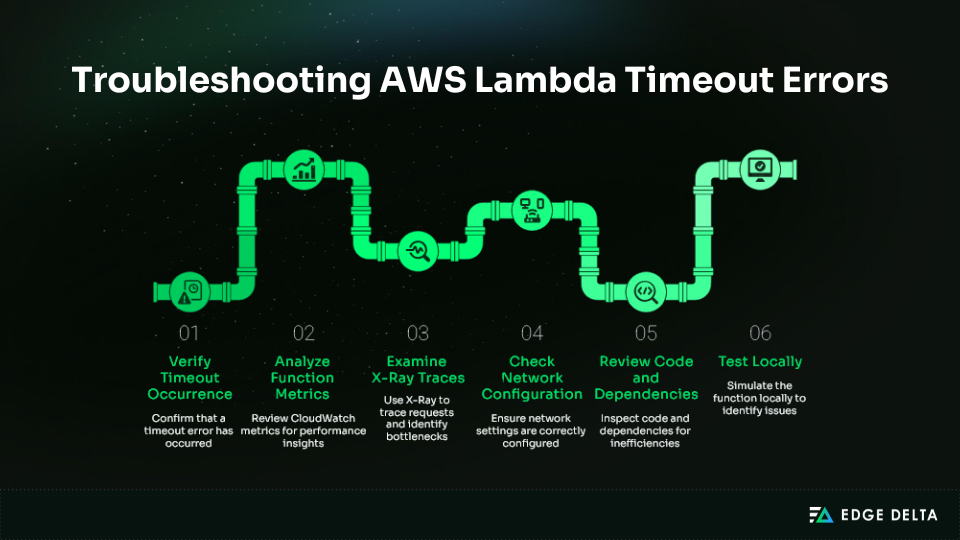
Timeouts can happen because of bad code, slow dependencies, networking problems, or configuration gaps. Instead of just looking at logs and metrics, a structured troubleshooting process helps you quickly find the root cause.
Step 1: Verify Timeout Occurrence
Check CloudWatch Logs for “Task timed out after” messages under Monitor and View Logs. Note the request IDs of failed invocations.
Also, check whether timeouts affect all invocations or only certain inputs. Look for patterns related to traffic spikes, payload size, or specific endpoints.
fields @timestamp, @requestId, @duration, @memorySize
| filter @message like "Task timed out"
| sort @timestamp desc
Step 2: Analyze Function Metrics
Duration trends give important clues: gradual increases may mean memory leaks or growing payloads, while sudden spikes often point to dependency issues. If the Maximum Duration metric stays at your timeout value, your timeout is likely set too low.
| Metric Check | Meaning |
|---|---|
| Max Memory Used ≈ Memory Size | Function requires more memory |
| Throttles present | Concurrency limits are delaying execution starts |
| Stable p95/p99 but failing max | Occasional dependency slowness causing outliers |
Step 3: Examine X-Ray Traces
Let AWS X-Ray find problems with requests that take too long. Check the traces for operations that are marked as Pending and look at the latency downstream. Some common findings are:
- S3 GetObject is exceeding 20 seconds.
- DynamoDB queries have high latency.
- Third‑party APIs are not responding.
- Cold starts adding 5+ seconds.
Step 4: Check Network Configuration
Lambdas running in a VPC often experience timeouts due to network issues. Ensure the NAT Gateway is operational, outbound traffic is allowed, and DNS correctly resolves external APIs. Use VPC Flow Logs to identify blocked connections.
Step 5: Review Code and Dependencies
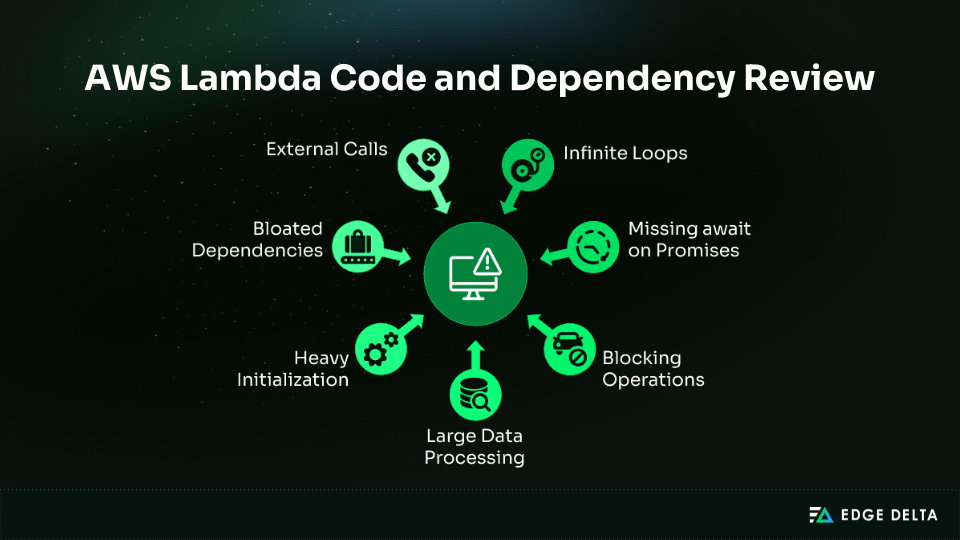
You should add logs that indicate when each step of the process starts and stops. This helps identify problems by showing whether there are delays during system startup, when queries are sent to the database, and when data is being processed.
console.time('db-query');
const data = await db.query();
console.timeEnd('db-query');
Step 6: Test Locally
Before putting your Lambda in the cloud, run it on your own computer to find issues quickly. Local testing speeds up debugging and makes it easier to look at timeout cases again and again.
Use AWS SAM Local to invoke functions with test events and custom timeouts:
sam local invoke MyFunction \
  --event events/test-event.json \
  --timeout 120
Or simulate with Docker:
docker run -p 9000:8080 my-lambda-image
curl -XPOST
 "http://localhost:9000/2015-03-31/functions/function/invocations" \
  -d @event.json
Real-World Lambda Timeout Scenarios
Timeout failures vary depending on the integration or workload. The following examples show common failure patterns and how teams can solve them.
Scenario 1: API Gateway Timeout Mystery
An API returned intermittent 504s even though Lambda was configured for 30 seconds and showed no internal timeouts. API Gateway logs revealed requests ending at the 29-second limit while the function kept running.
The solution was to move the long-running processing step to an asynchronous workflow and return immediately.
Revised handler:
exports.handler = async (event) => {
  const jobId = await queueJob(event);
  return {
    statusCode: 202,
    body: JSON.stringify({ jobId, statusUrl: `/job-status/${jobId}` })
  };
};
Scenario 2: SQS Duplicate Processing Nightmare
Since the function took longer than the SQS view timeout, two payments were made. They got messages before they were done and new calls began. The issue was fixed by making the visible timeout longer and adding the ability to become inactive again.
Updated SQS visibility timeout:
aws sqs set-queue-attributes \
  --queue-url $QUEUE_URL \
  --attributes VisibilityTimeout=360
Idempotent handler logic:
if (await isAlreadyProcessed(paymentId)) return;
await processPayment(paymentId);
await markAsProcessed(paymentId);
Scenario 3: Memory-Induced Timeout
An image-processing Lambda timed out erratically. Memory was consistently near capacity, limiting available CPU and slowing processing. Increasing memory provided additional CPU and significantly reduced the runtime.
Revised configuration:
ImageProcessor:
  Type: AWS::Serverless::Function
  Properties:
    Timeout: 30
    MemorySize: 1024
Cost Optimization for Lambda Timeouts
Timeout settings directly affect Lambda costs because AWS bills for total execution time, including time spent in stalled or hung functions. Setting timeouts too high increases spend during failures, while a well-sized limit controls waste and speeds up debugging.
This section explains how to right-size timeouts, tune memory for cost efficiency, and reduce log ingestion expenses.
Timeout’s Impact on Cost
Because Lambda bills for the total execution time, functions that hang or run inefficiently can become costly. AWS only charges for the time a function is running, even if it’s idle due to a bug. This makes properly configured timeouts crucial for controlling costs when issues occur.
Cost formula:
**Cost =**** **Memory (GB) × Duration (seconds) × Invocations
Right-Sizing Timeout for Cost
Timeouts should match real performance patterns rather than arbitrary estimates. Consider the following points:
- Track p99 duration for two weeks
- Apply a small buffer (p99 × 1.2)
- Keep timeout errors under 1%.
- Reassess the setting every quarter or when dependencies change.
Optimize Memory for Lower Costs
Memory levels affect CPU allocation, which impacts runtime and overall cost. The most cost-efficient setup balances speed and cost, not just minimizing memory.
Here’s a benchmark comparison of various memory settings to identify the optimal price-to-performance ratio.
| Memory | Duration | Cost | Outcome |
|---|---|---|---|
| 128 MB | 8,000 ms | $0.000017 | Slowest |
| 1,024 MB | 1,200 ms | $0.000020 | Best balance |
| 2,048 MB | 800 ms | $0.000027 | Fast but higher cost |
CloudWatch Logs Cost Optimization
Lambda jobs with a lot of data often have higher costs for logs than for compute. Since it costs 50 cents per gigabyte, large log streams can quickly cause monthly bills to reach thousands of dollars.
A telemetry pipeline like Edge Delta reduces ingestion by filtering unneeded logs and aggregating repetitive patterns before sending data to CloudWatch. Typical reduction ranges around 60%–80%.
Conclusion and Recommendations
Timeouts are easy to set but have a significant impact on Lambda reliability and cost. The three-second default rarely fits production workloads, while the fifteen-minute maximum hides slow code and delays failures.
Effective systems treat timeouts as safeguards that maintain workload predictability.
- Match workload: API (3–6 s), Stream (10–30 s), Batch (1–5 min), Heavy (up to 15 min)
- Set downstream limits: Define explicit timeouts for external APIs and services
- Monitor actively: Track Duration, Errors, and Throttles; add alarms, scan logs, and use X‑Ray
- Tune with data: Measure p99 latency, apply buffer, adjust memory to reduce cold starts and execution time
- Optimize operations: Audit oversized timeouts, align SQS visibility, handle failures gracefully, and streamline high‑volume logs
Timeouts are more than configuration values. When intentionally set, consistently monitored, and refined with data, they protect workloads, reduce costs, and keep Lambda systems resilient and predictable at scale.
Frequently Asked Questions
What happens to in-flight operations when Lambda times out?
Execution stops immediately. Any ongoing work, such as database writes, S3 uploads, and API calls, may remain unfinished. Use idempotent logic, retries, and queues or Step Functions to maintain consistency.
Can I change a Lambda timeout without redeploying code?
Yes. Timeout is a configuration value, not part of the function package. You can update it through the Console, CLI, or IaC. The change applies to new invocations immediately. For long-term consistency, manage it with Terraform, CloudFormation, or SAM rather than manual edits.
Why did my Lambda time out even though Duration looked fine in CloudWatch?
Failures can be hidden by duration measures. It includes the time it takes to “cold-start,” trends don’t count failed attempts, and retries change the results. “Task timed out” should show up in the CloudWatch Logs. For more information, use X-Ray.
How should I handle timeouts for synchronous vs asynchronous calls?
Synchronous calls fail immediately, so callers must handle errors. Asynchronous calls retry automatically, requiring idempotent functions and DLQs. Longer timeouts are fine for async flows but should remain reasonable to keep failures visible.
Source List: